Once the .pkg is installed, open your DAW and perform a plugin rescan to register the new instrument (FL Studio shown in the screenshot).
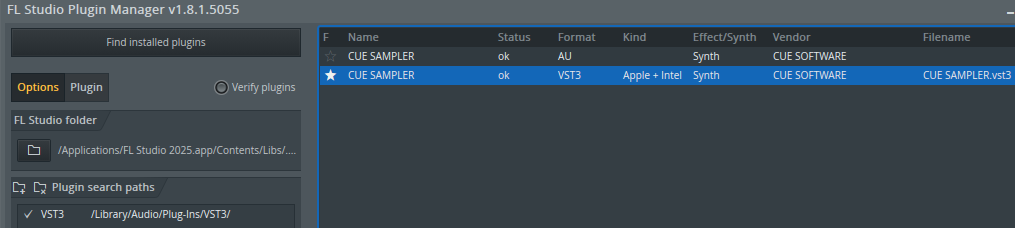
Screenshot of FL Studio Plugin Manager v1.8.1.5055 showing two audio plugins labeled CUE SAMPLER with their status, format, kind, vendor, and filename details.

Once scanned, the plugin will appear in your plugin list.
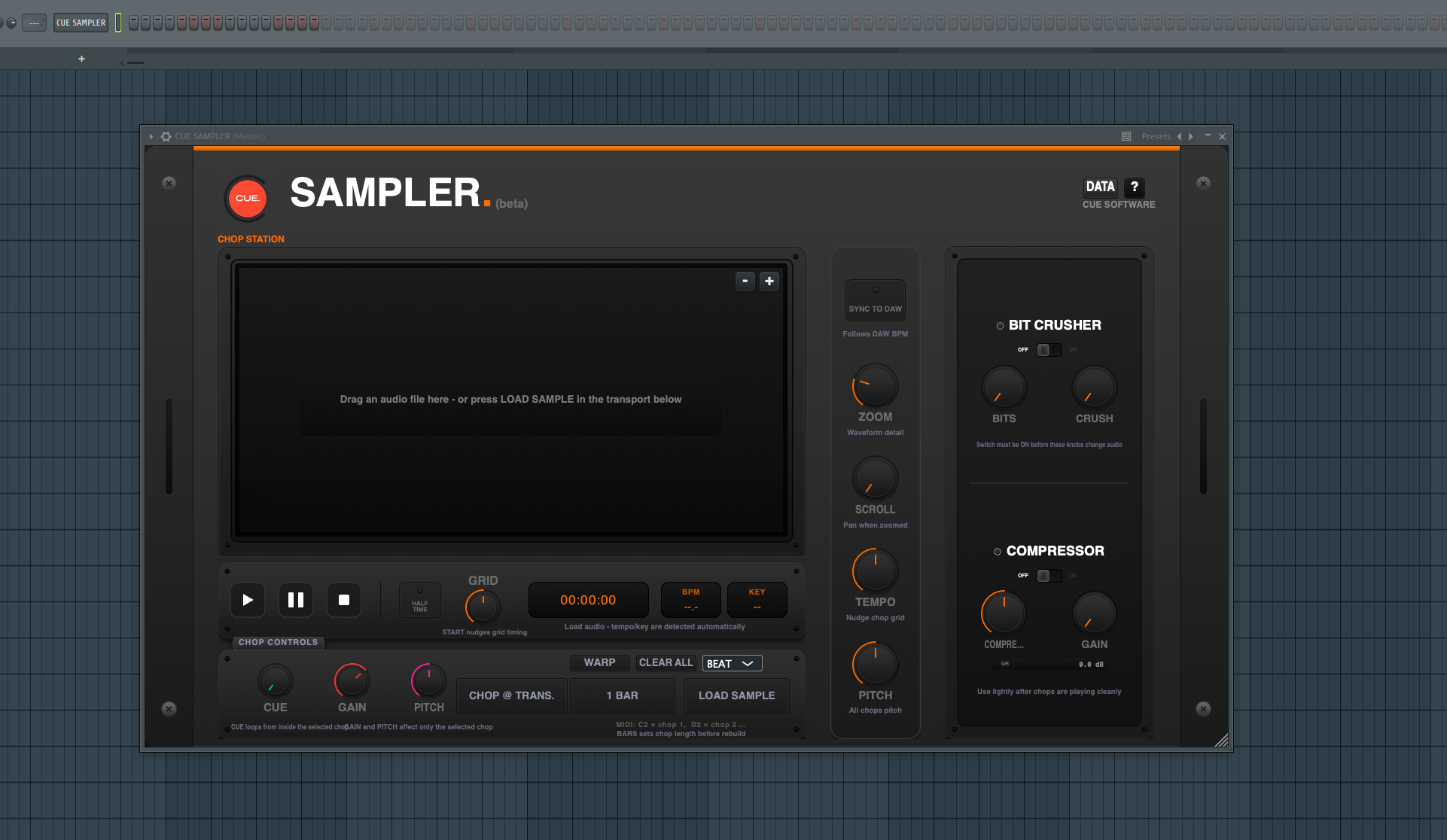
Screenshot of a digital music sampler software interface with controls for chopping, playing, and effects, set against a computer screen with a grid background.

Screenshot of music production software with various controls, including a sampler interface in the center, labeled section for 'Bit Crusher' with toggles for off and on, and other knobs and buttons for adjusting audio settings.

Drag any song or audio file into the waveform window. Or press “LOAD SAMPLE”
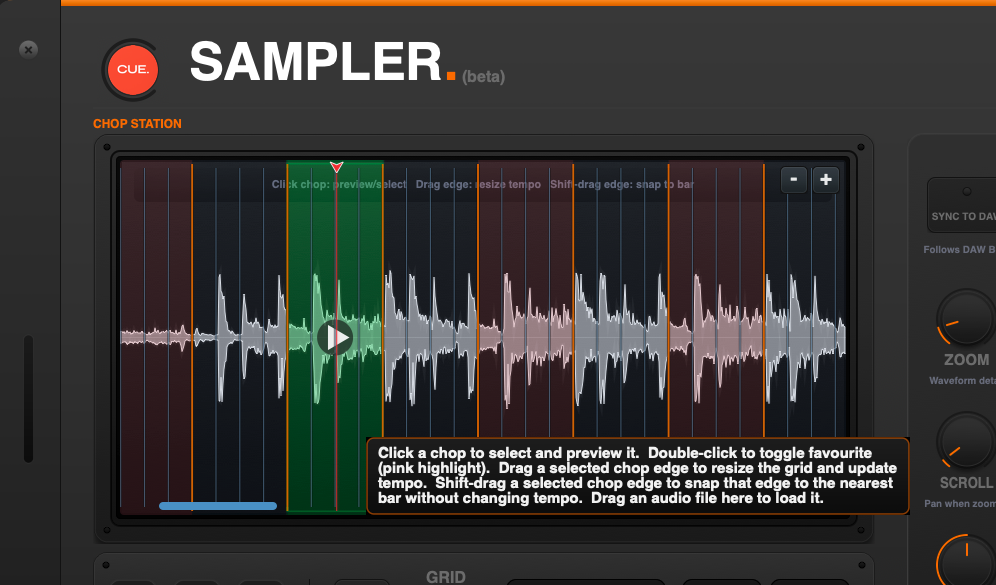

Screenshot of a digital audio workstation interface labeled 'SAMPLE' with a waveform display, editing tools, and section titles like 'CHOP STATION' and instructions for audio editing.

Once a song/ sample is loaded, it will detect BPM and Key. (can be fine tuned) Automatically chopped every bar. Each chop can be triggered by midi or a simple click.
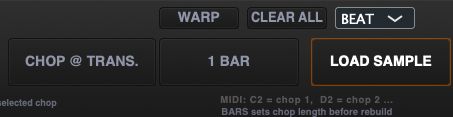

Close-up of a digital music production interface with buttons labeled WARP, CLEAR ALL, BEAT, CHOP @ TRANS., 1 BAR, LOAD SAMPLE, and MIDI controls.

You can chop by transients or by bar (1,2,3,4 or 8 bars)


Press “SYNC TO DAW” and the sample with will stretch to follow the tempo of your project.
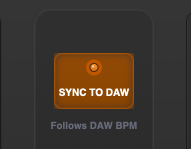
Orange button labeled 'SYNC TO DAW' on a digital audio workstation interface

The CUE knob adjusts starting point of selected “green” chop.

The GAIN knob adjusts volume on selected chop.

The PITCH knob adjusts pitch on selected chop.

You will see the pitch and gain levels on your chop.
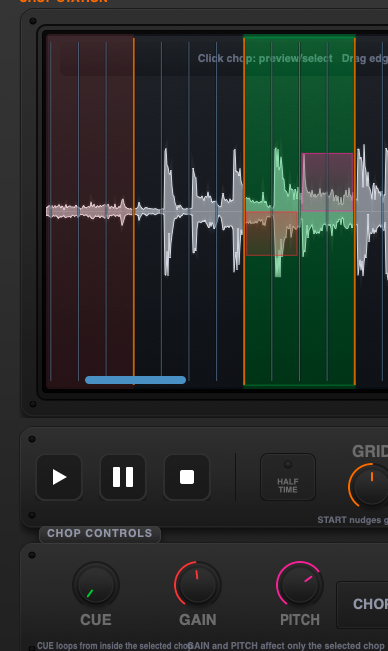
Audio editing software screen showing a waveform with colored sections and control buttons for play, pause, and stop.

Drag the orange chop markers to resize your chop. Once you resize a chop, the tempo will automatically change to fit your grid.
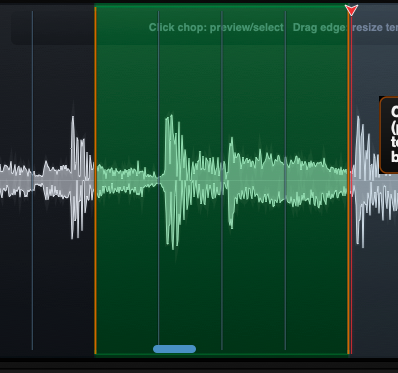
Screenshot of an audio editing software showing a waveform with various editing sections highlighted in green, red, and other colors.


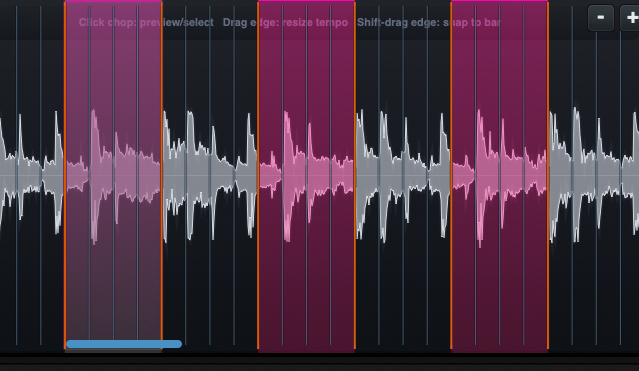
Double click any chop to favorite it.

Screenshot of an audio editing software showing waveforms, timeline, and editing tools.

Click WARP to time stretch your selected chop.
Close-up of a purple label with the word 'WARP' in white text.

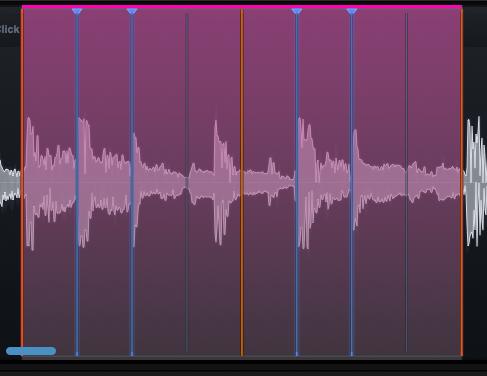
Once in WARP mode you can click to add warp markers or click transients to quantize them to your grid. Click WARP again to exit warp mode.
Audio waveform display with vertical colored lines dividing sections.